Webonboarding

Create Account & Sign In

/signup

Create Account & Sign In, from entry to detail

Inner Quest lets you create an account in seconds using either your email or Google account. Once signed in, you unlock the full experience — your progress is tracked, your data syncs across devices, and you get a personalized home page with daily gratitude prompts, an AI guide, and progress stats.

You can also explore the app as a guest without creating an account, but signing up ensures your journey is saved and your insights build over time.

Imported from Inner Quest's app-owned walkthrough library. The captures are real product evidence, but their original run manifest and detailed interaction log predate Walkthrough Studio, so freshness is not claimed.

  1. 01

    Sign Up Page — Choose Your Method

    Opened /signup.

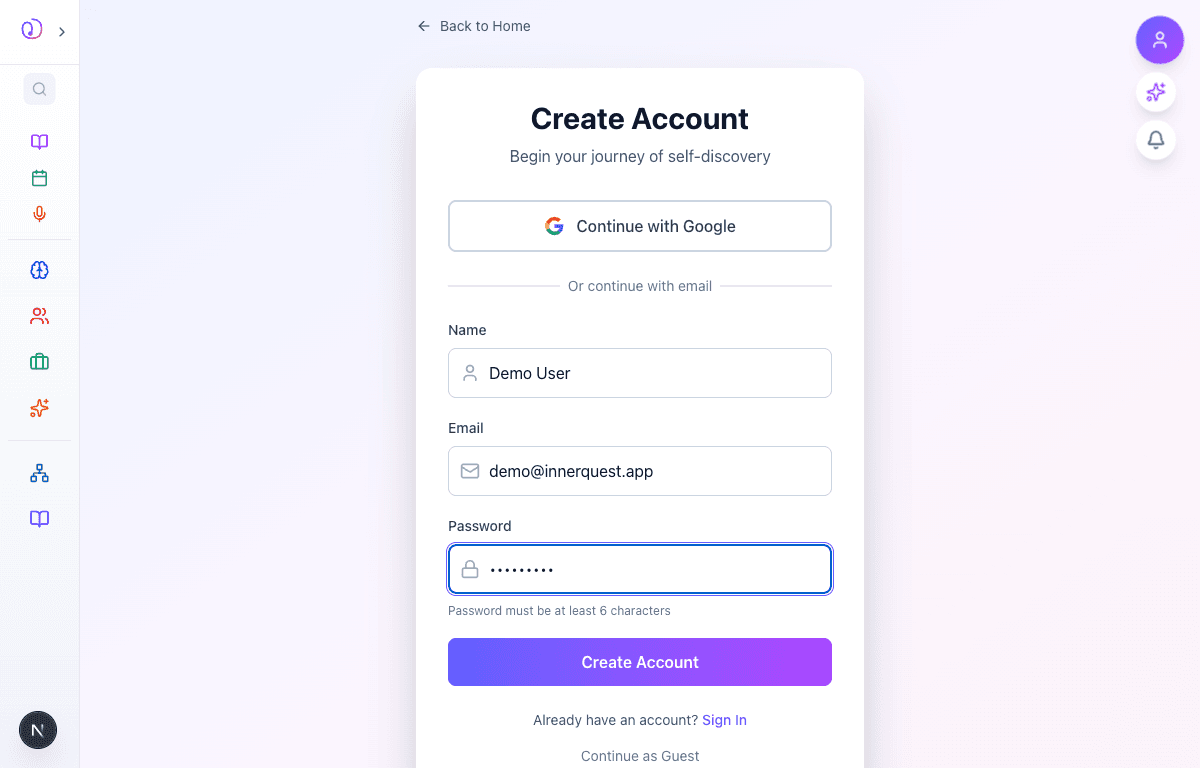
    Navigate to /signup (or tap "Get Started" from the home page) to see the account creation form. You have two options:

    1. Continue with Google — one-tap signup using your Google account. Your name and profile photo are imported automatically.
    2. Email & Password — enter your name, email, and a password (minimum 6 characters).

    At the bottom, you'll also find links to sign in if you already have an account, or continue as a guest.

    /signup
    /signup
    Sign up page showing Continue with Google button and email registration form with Name, Email, and Password fields
  2. 02

    Fill In Your Details

    Advanced to the next state preserved by the app-owned walkthrough.

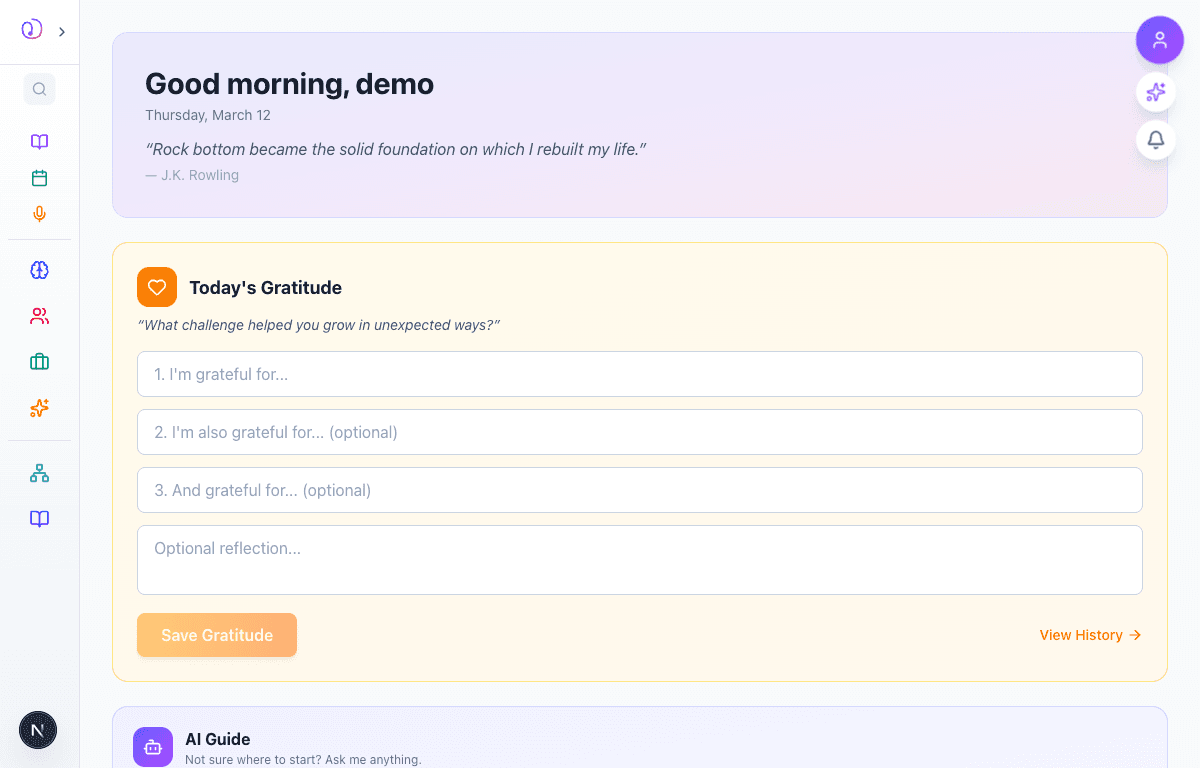
    Enter your name, email address, and choose a password. The password must be at least 6 characters. Your name will be used to greet you throughout the app and personalize your experience.

    Once everything is filled in, tap the purple "Create Account" button to register.

    /signup
    /signup
    Sign up form filled with name and email, password masked, ready to submit
  3. 03

    Welcome Home — Your Journey Begins

    Advanced to the next state preserved by the app-owned walkthrough.

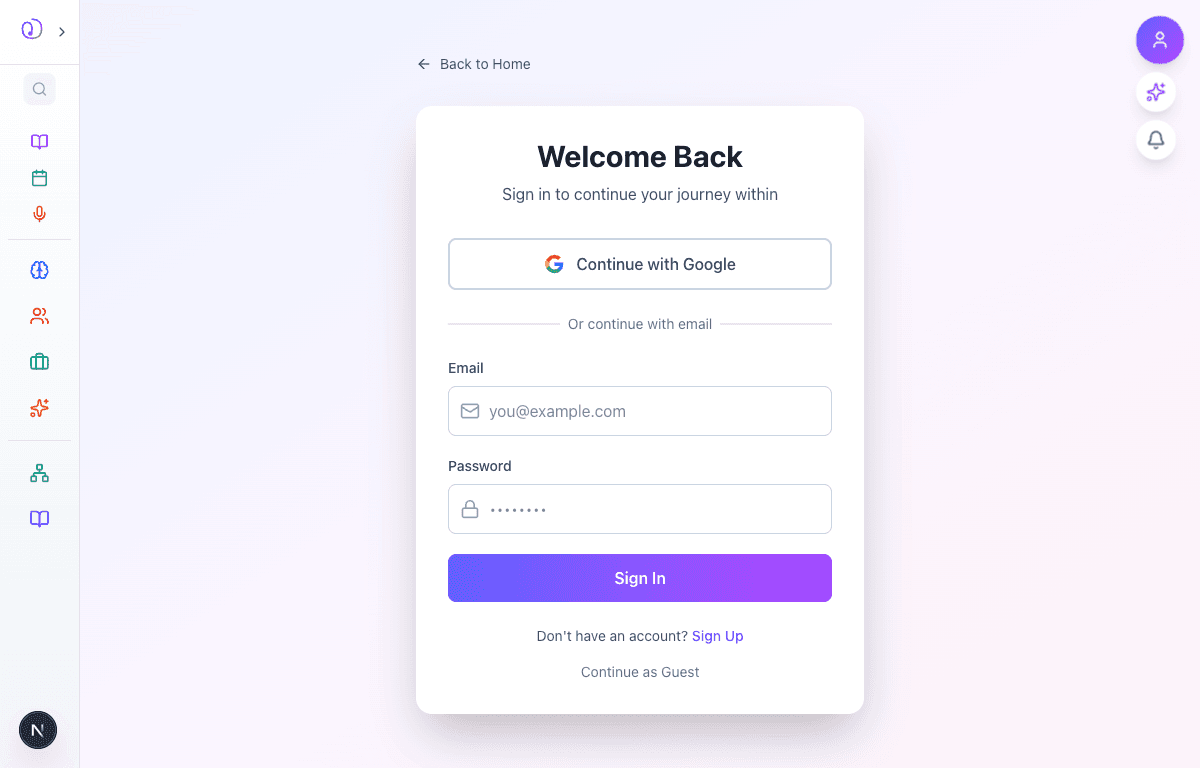
    After creating your account, you're immediately taken to your personalized home page. Here you'll see:

    • A greeting with your name and an inspirational quote of the day
    • Today's Gratitude — a daily prompt with space to write three things you're grateful for
    • AI Guide — your personal AI assistant ready to help you explore the app
    • Progress Dashboard — tracks your total activities, active days, tools used, and overall journey progress
    • Continue Your Journey — quick links to recommended tools like Growth Tracker, Breathing Practice, and Wolf Reflection

    Everything starts at zero — as you use the app, your dashboard fills up with meaningful data.

    /signup
    /signup
    Authenticated home page showing Good morning greeting, Today's Gratitude prompt, and AI Guide section
  4. 04

    Sign In — Returning Users

    Advanced to the next state preserved by the app-owned walkthrough.

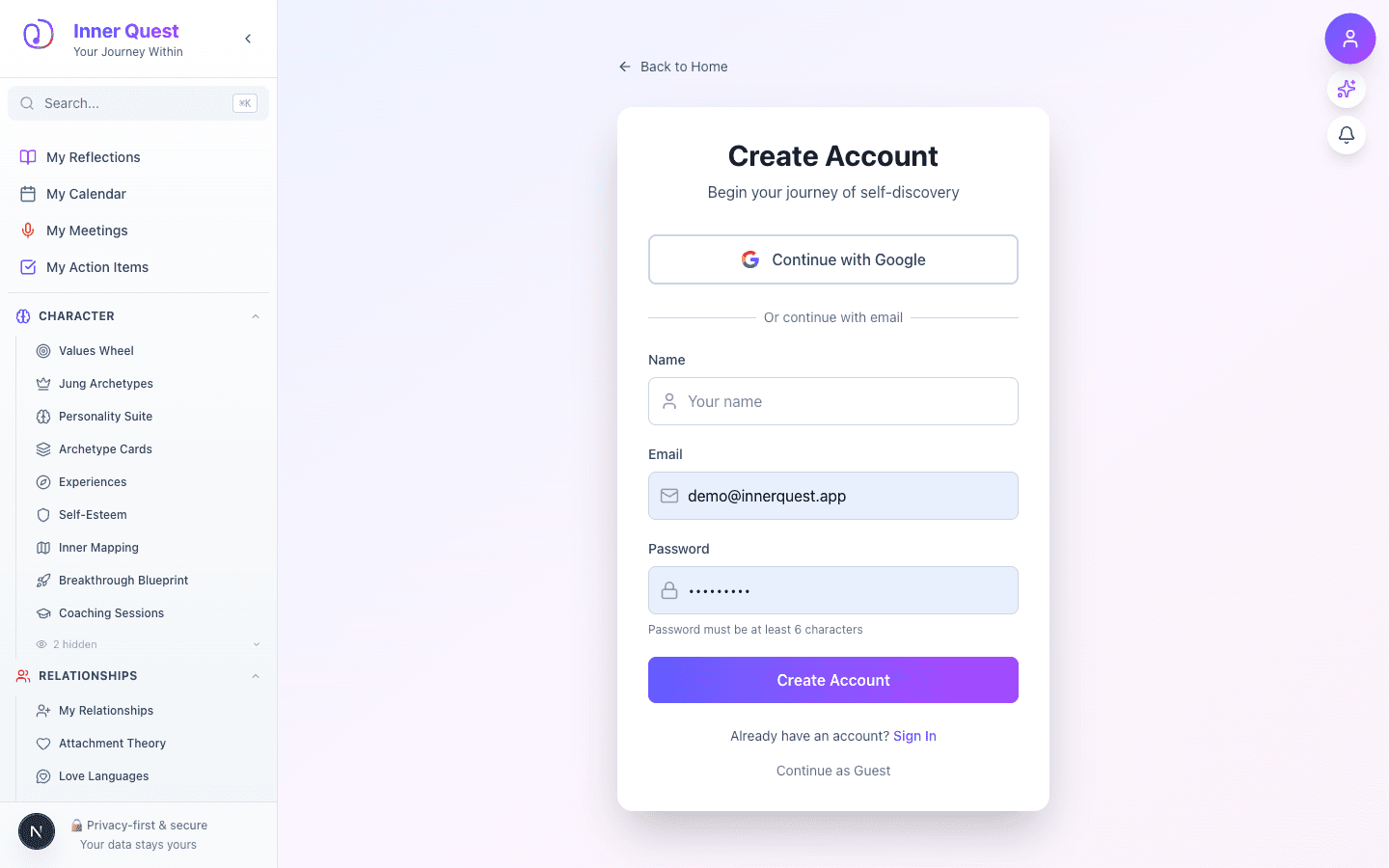
    If you already have an account, navigate to /signin (or tap "Sign In" from the sign up page). The sign in page offers the same two methods:

    1. Continue with Google — one tap if you signed up with Google
    2. Email & Password — enter your registered email and password

    You can also create a new account from here, or continue browsing as a guest.

    /signup
    /signup
    Sign in page showing Welcome Back heading, Google sign-in button, and email/password form

What this feature does

  • Two sign-up methods: Google OAuth and email/password
  • Instant account creation with no email verification required
  • Anonymous guest access for exploring before committing
  • Automatic profile sync — name and photo imported from Google
  • Account linking — upgrade from guest to full account without losing data
  • Personalized home page immediately after signup
  • Privacy-first design — your data stays yours

Worth knowing

  • Google sign-up is the fastest — one tap and you're in with your name and photo imported
  • If you started as a guest, you can link your account later without losing any progress
  • Use a strong password — minimum 6 characters, but longer is better
  • Your first stop after signing up should be the gratitude prompt on your home page
  • Check out the AI Guide on the home page if you're not sure where to start